

Ever lost a multiplayer match because your game stuttered at the worst moment? It’s not your skill. It’s your hardware.
I know the frustration all too well. That’s why I’m here to help you with multiplayer hardware optimization. We went deep into the competitive meta to see how even tiny gains can flip the script in your favor.
Doesn’t it feel like winning should be about plan, not tech hiccups? Well, it can be. After reading this, you’ll have a clear-cut guide to tuning your existing PC hardware for real results.
No placebo. Just measurable performance upgrades that let you focus on outplaying, not out-fixing. Stick with me, and those lag spikes will become a thing of the past.
Ready to get serious about your game? Let’s get those wins smooth and steady.
The Core of Gaming: System & Driver Tweaks
Before diving into the nitty-gritty of specific component tuning, let me tell you, the base of your system is where the magic begins. It’s the highest-impact tweak you can make with the least effort. You wouldn’t build on quicksand, right?
For multiplayer hardware optimization, start with your GPU drivers. Using the Display Driver Uninstaller (DDU) for a clean install isn’t just another tech geek’s tip (it’s) key for avoiding conflicts that can tank your frame rates, especially on competitive titles. Those standard updates?
They leave remnants that muck up your performance.
Ever heard of Windows Game Mode? It’s like handing your game a VIP pass to your system’s resources. When enabled, it optimizes your entire computer to focus on gaming by reducing background distractions.
To turn it on, hit the Windows button, type “Game Mode settings,” and flip the switch to ‘On’. Easy, right?
Then there’s Hardware-Accelerated GPU Scheduling. Sounds fancy, but it’s just a way to lower latency and boost performance. Go to your Display settings, hit “Graphics settings,” and toggle it on.
This can really give you that edge you’re craving.
Now, let’s talk about those pesky background processes. You’ve got cloud sync services, RGB software, and overlays draining your system secretly. Instead of just closing apps, use the Task Manager’s startup tab to control what runs.
You’ll be surprised how much smoother your gaming becomes.
For more tips on Configuring Settings Competitive Multiplayer, check out the detailed guides available. They dive deeper into advanced settings and strategies. So, are you ready to level up your gaming performance?
Unlocking Your Graphics Card: Control Panel Secrets
Let’s get into the real guts of your GPU. This isn’t just about tweaking your OS. We’re diving into the GPU’s brain.
For NVIDIA Users: NVIDIA Control Panel
First up, NVIDIA users. You want to improve for that sweet multiplayer edge, right? Start with Low Latency Mode.
There’s “On” and “Ultra.” On is decent, but Ultra? It’s like shaving milliseconds off your reaction time. Perfect for competitive play.
Then there’s the Power Management Mode. Set it to Prefer Maximum Performance. No one wants their GPU taking a nap in the middle of a game.
Keep it awake and ready to go. Lastly, Texture Filtering – Quality. Set that to High Performance.
Sacrifice a bit of eye candy for smoother gameplay. In multiplayer, it’s not about beauty; it’s about beating the other guy.
For AMD Users: Radeon Software
AMD users, you’re not left out. Radeon Anti-Lag is your first stop. It reduces input lag, which is a game-changer in fast-paced games. Then there’s Radeon Boost.
Use it when you need a little extra FPS juice, but skip it if you’re in a game where visuals matter more.
And don’t forget Texture Filtering Quality. Set it to Performance. Again, it’s all about getting that competitive edge.
Trust me, you won’t miss those extra pixels when you’re dominating the leaderboard.
Now, here’s a pro tip for both NVIDIA and AMD folks: set up game-specific profiles. This lets you go aggressive on performance for shooters while cranking up the visuals for that immersive single-player RPG.
Want more on multiplayer hardware optimization? Dive deeper and find what makes your setup unbeatable.
Don’t Forget Your CPU: BIOS/UEFI Magic and Power Plans
Let’s talk about your CPU. It’s the unsung hero of your gaming rig, constantly feeding data to your GPU. If you want to keep your frame rates high, you can’t ignore it.
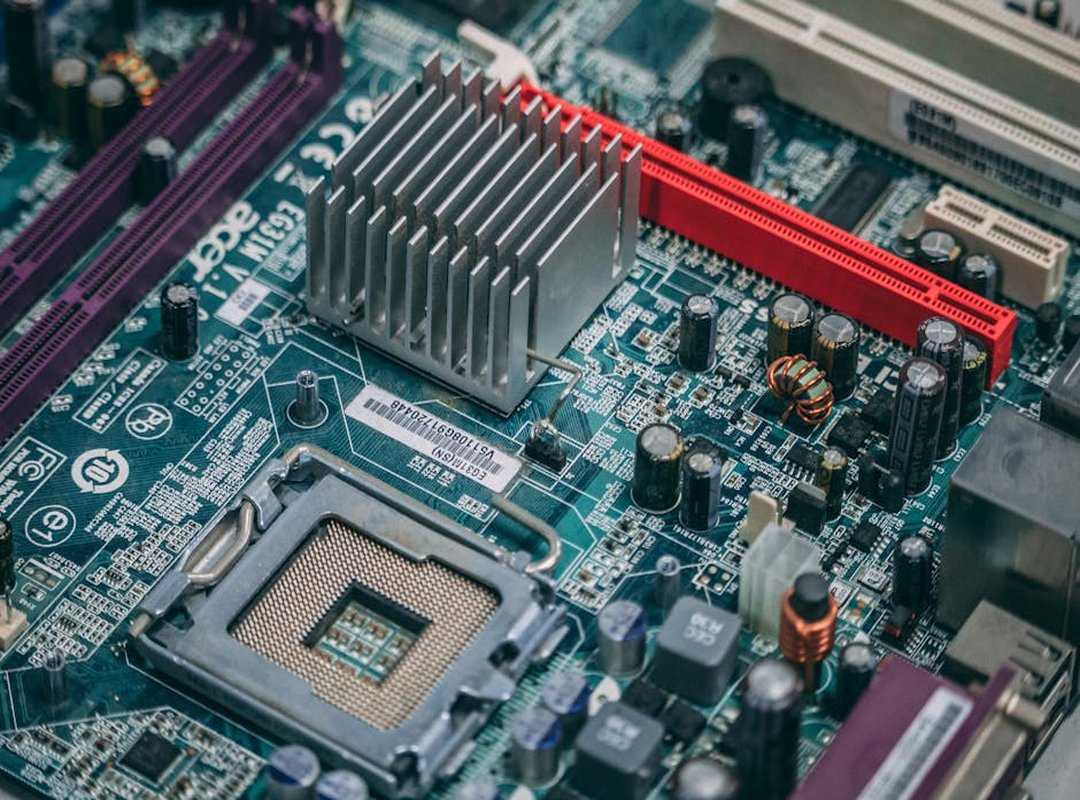
Think of it as the chef in a kitchen (not the flashy waiter). It’s making sure everything gets to the right place at the right time.
Ever heard of RAM XMP or DOCP? It’s like unlocking the true speed you paid for. These profiles let your RAM run at its advertised speed.
You tweak this in the BIOS/UEFI. Don’t skip reading your motherboard manual for this. Trust me, it’s worth the five minutes you’ll spend flipping through pages.
Now, to Windows Power Plans. Ever notice how your game lags when you least expect it? That’s your CPU clock speed fluctuating.
The ‘Ultimate Performance’ plan is your friend here. It keeps your CPU running at full throttle, unlike the ‘Balanced’ plan which is like your CPU taking a nap in the middle of a boss fight.
And those CPU C-states? They’re power-saving features. Sounds good, right?
Wrong. They can cause micro-stutter. Disabling them can lead to smoother gameplay, which is what you want when you’re deep into best peripherals multiplayer gaming.
So, what’s the takeaway? If you’re serious about multiplayer hardware optimization, tweak your BIOS/UEFI and power plans. Your CPU will thank you, and so will your gaming experience.
The Network Edge: Optimizing Your Connection Hardware
Let’s talk about multiplayer hardware optimization. High FPS is pointless if your data crawls to the server. Wired Ethernet.
What’s the deal with it? It’s superior for gaming. Why?
Latency and packet loss. Your gaming experience can crash and burn if these aren’t under control.
Wi-Fi is convenient but not always reliable. You ever notice those sudden game lags? That’s Wi-Fi letting you down.
Ethernet gets rid of those hiccups with stable connections. It’s like comparing a roller coaster (Wi-Fi) to a bullet train (Ethernet): one is thrilling but unpredictable, the other, smooth and direct.
If you’re stuck with Wi-Fi, at least improve it. Router tricks like enabling Quality of Service (QoS) can help. QoS prioritizes gaming traffic, so you don’t lose your cool mid-match.
Think of it as setting the VIP lane for your game data.
Can’t plug into Ethernet? Hunt for that least congested Wi-Fi channel.
Don’t ignore DNS settings either. Sounds techy, but it’s simple. A DNS server is like your phonebook on the internet.
Switch to a public DNS like Google’s 8.8.8.8 or Cloudflare’s 1.1.1.1. Sometimes, this means less in-game lag. Who doesn’t want that edge?
Level Up Your Game Now
Frustrated by performance bottlenecks? I get it. These hiccups hold back your true skill.
But here’s the fix: tackle those bottlenecks head-on with the right tweaks. From driver hygiene to GPU settings and CPU/network tuning, these steps are your new best friends. Consistent performance, not just peak FPS, is the real game-changer.
It’s the key to climbing the ranks.
Want to see a difference? Set up one or two of these strategies before your next session. Experience the game the way it’s meant to be played.
Ready to master multiplayer hardware optimization? Dive in and conquer.
 stormycougar79 writes the kind of age 9 competitive meta analysis content that people actually send to each other. Not because it's flashy or controversial, but because it's the sort of thing where you read it and immediately think of three people who need to see it. stormycougar79 has a talent for identifying the questions that a lot of people have but haven't quite figured out how to articulate yet — and then answering them properly.
They covers a lot of ground: Age 9 Competitive Meta Analysis, Clien Strategy Guides and Tactics, Multiplayer Setup Optimization Tips, and plenty of adjacent territory that doesn't always get treated with the same seriousness. The consistency across all of it is a certain kind of respect for the reader. stormycougar79 doesn't assume people are stupid, and they doesn't assume they know everything either. They writes for someone who is genuinely trying to figure something out — because that's usually who's actually reading. That assumption shapes everything from how they structures an explanation to how much background they includes before getting to the point.
Beyond the practical stuff, there's something in stormycougar79's writing that reflects a real investment in the subject — not performed enthusiasm, but the kind of sustained interest that produces insight over time. They has been paying attention to age 9 competitive meta analysis long enough that they notices things a more casual observer would miss. That depth shows up in the work in ways that are hard to fake.
stormycougar79 writes the kind of age 9 competitive meta analysis content that people actually send to each other. Not because it's flashy or controversial, but because it's the sort of thing where you read it and immediately think of three people who need to see it. stormycougar79 has a talent for identifying the questions that a lot of people have but haven't quite figured out how to articulate yet — and then answering them properly.
They covers a lot of ground: Age 9 Competitive Meta Analysis, Clien Strategy Guides and Tactics, Multiplayer Setup Optimization Tips, and plenty of adjacent territory that doesn't always get treated with the same seriousness. The consistency across all of it is a certain kind of respect for the reader. stormycougar79 doesn't assume people are stupid, and they doesn't assume they know everything either. They writes for someone who is genuinely trying to figure something out — because that's usually who's actually reading. That assumption shapes everything from how they structures an explanation to how much background they includes before getting to the point.
Beyond the practical stuff, there's something in stormycougar79's writing that reflects a real investment in the subject — not performed enthusiasm, but the kind of sustained interest that produces insight over time. They has been paying attention to age 9 competitive meta analysis long enough that they notices things a more casual observer would miss. That depth shows up in the work in ways that are hard to fake.