
If you’re searching for ways to gain a real edge in competitive shooters, you’re in the right place. Fast-paced multiplayer FPS games demand more than quick reflexes—they require smart strategy, up-to-date meta awareness, and the right technical setup to stay ahead of the competition. This article is built specifically to help you understand current gameplay trends, refine your tactics, and optimize pc for multiplayer fps performance so you can compete at your highest level.
Many players struggle with inconsistent performance, shifting metas, and unclear optimization advice that doesn’t actually translate into wins. Here, we break down proven strategies, emerging competitive patterns, and practical system tweaks that directly impact your in-game results.
Our insights are grounded in ongoing analysis of competitive play, evolving mechanics, and real multiplayer performance benchmarks—so you’re not just getting theory, but actionable guidance designed for serious players who want measurable improvement.
Winning the millisecond war starts with eliminating software bottlenecks. First, update GPU drivers and disable background overlays; they steal frames like a sneaky third-party app running mid-match. Next, lower shadow quality and enable low-latency modes—free gains. To optimize pc for multiplayer fps, tweak power settings to “High Performance” and cap background processes. If stutter persists, check thermals; overheating throttles clocks. Hardware comes last: faster RAM and SSDs smooth asset streaming. The future likely favors frame generation and AI latency reduction (speculation, but trends point there). Pro tip: prioritize consistency over peak FPS. Smooth beats flashy every time. Stay ruthless.
The Zero-Cost Tune-Up: Optimizing Your Game and System Settings
Let’s start with the truth: most players don’t need new hardware. They need better settings. I’ve seen mid-tier rigs outperform flashy builds simply because the owner understood what to tweak (yes, really).
In-Game Graphics Settings Demystified
Shadows, anti-aliasing, textures, and view distance hit performance differently. Shadows are notorious FPS killers because they constantly update lighting calculations. Lower them first. Anti-aliasing smooths jagged edges but can tax your GPU; switching to a lighter method like FXAA often boosts frames. Textures mostly affect VRAM usage, so keep them high only if your card can handle it. View distance increases rendered objects—great for immersion, brutal for competitive play.
My baseline competitive template?
- Shadows: Low
- Anti-aliasing: Low or FXAA
- Textures: Medium
- View Distance: Medium
- Post-processing effects: Off
Clarity beats eye candy every time (this isn’t a Marvel movie).
Updating Your Graphics Drivers
New GPU drivers from NVIDIA or AMD often include game-specific optimizations and bug fixes (NVIDIA regularly documents performance gains in patch notes). Do a clean installation—this removes old profiles that can cause conflicts. It’s a small step that can stabilize frames instantly.
Windows Gaming Optimizations
Enable Game Mode, disable unnecessary background apps, and switch your power plan to High Performance. These adjustments prioritize CPU and GPU resources for your game. If you’re trying to optimize pc for multiplayer fps, this is foundational.
Disabling Overlays
Discord, GeForce Experience, and other overlays consume resources and can introduce input lag. Turn off the ones you don’t need. Competitive play rewards milliseconds—don’t waste them.
Advanced Software & Driver Configuration for Peak Responsiveness
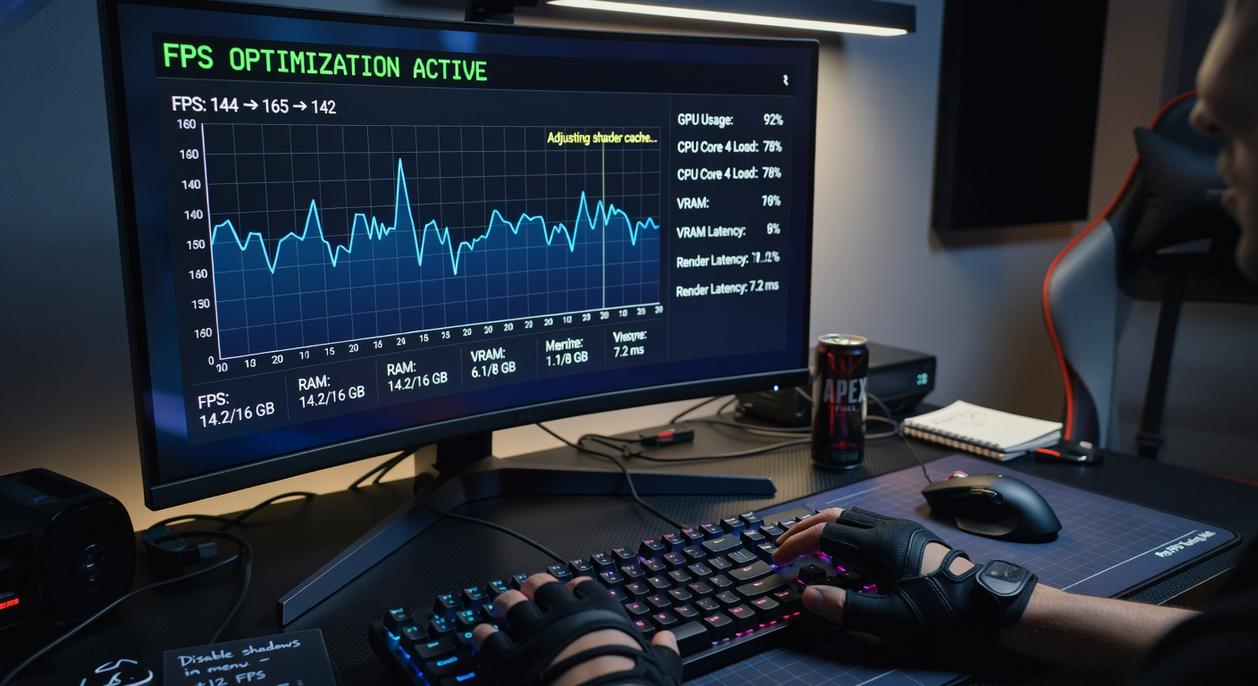
If you want split-second reactions, software settings matter just as much as hardware. Think of it as tuning a race car: stock is fine, optimized is lethal.
NVIDIA vs AMD: Key Driver Settings Compared
Both NVIDIA Control Panel and AMD Radeon Software offer latency-focused tools—but their impact depends on how you configure them.
-
Low Latency Mode (NVIDIA) vs Anti-Lag (AMD)
Set Low Latency Mode to Ultra (NVIDIA) or enable Anti-Lag (AMD). Ultra reduces the render queue to near zero, while Anti-Lag dynamically syncs CPU/GPU timing. Ultra is more aggressive; Anti-Lag is often smoother in CPU-bound titles. -
Power Management Mode
Choose Prefer Maximum Performance instead of Adaptive. Adaptive saves power; Maximum Performance prevents clock speed dips mid-match (because nobody wants a frame drop during a clutch). -
Shader Cache Size
Set to Unlimited or driver default if large. A restricted cache can cause stutter when new effects load—common in live-service FPS games.
Network Tuning: Wired vs Wireless
Wi-Fi is convenient. Ethernet is consistent. A wired connection reduces packet loss and jitter—critical in multiplayer shooters. Update network drivers regularly and configure router QoS to prioritize game traffic over streaming. It’s a small tweak that can stabilize ping spikes.
Clean System vs Cluttered System
A bloated PC loads slower and hitches more. Remove unnecessary startup programs, clear temporary files, and disable background overlays. To truly optimize pc for multiplayer fps, consistency beats raw specs.
Disable Fullscreen Optimizations
Right-click your game’s .exe → Properties → Compatibility → check Disable Fullscreen Optimizations. This often reduces input lag by giving the game direct display control (yes, it still helps in 2026).
Identifying Your Bottleneck: Is It Time to Upgrade?
First, let’s measure before we blame. Tools like MSI Afterburner or an in-game performance overlay let you monitor CPU, GPU, and RAM usage in real time. After a few matches (give it at least 20–30 minutes for consistent data), check the trends. If your GPU is pinned at 95–100% while your CPU sits at 40%, that’s a GPU bottleneck—meaning your graphics card is the limiting factor. Flip that scenario, and you’ve got a CPU bottleneck, where your processor can’t feed frames fast enough. This is especially common in FPS titles at lower resolutions, where higher frame rates lean heavily on the CPU.
However, not everyone agrees bottlenecks matter. Some argue that “playable FPS is playable FPS.” Fair—but if you’re trying to optimize pc for multiplayer fps, small dips can cost gunfights (and pride).
Then there’s RAM, the unsung hero. Insufficient capacity or slow speeds cause stutters, especially with Discord or Chrome open. Enable XMP (or DOCP on AMD) in BIOS—this setting allows RAM to run at its rated speed instead of defaulting lower (crucial, yet often ignored).
Finally, storage. SSDs drastically reduce load times compared to HDDs and help minimize asset streaming hiccups. And if you’re debating peripherals, consider reading wired vs wireless which setup is better for competitive play.
Smart Hardware Upgrades for a Competitive Edge
Upgrading your gear isn’t about flashy RGB—it’s about measurable performance gains.
High Refresh Rate Monitors
Jumping from 60Hz to 144Hz or higher dramatically improves motion clarity. A higher refresh rate means the screen updates more times per second, reducing motion blur and input delay (the gap between your action and what you see). In fast shooters, that split second can decide a duel.
CPU Upgrade Path
If your game stutters in crowded fights, you may be CPU-bound (when your processor limits performance). Prioritize CPUs with high single-core clock speeds, since many competitive titles rely heavily on one or two cores.
GPU Upgrade Path
If visuals drop during explosions or large maps, you’re likely GPU-bound. Choose a card that pushes frames well above your monitor’s refresh rate for stability.
Upgrade Priority:
1) High-refresh monitor
2) GPU or CPU (fix the bottleneck first)
3) Faster RAM
Follow this order to effectively optimize pc for multiplayer fps.
From Lag to Lead
First, remember this: gains came from stacking software tweaks, system cleanups, and hardware upgrades. Now, stutter that cost you rounds on ranked servers is gone. In other words, you’ve removed bottlenecks. Start with zero-cost tweaks to optimize pc for multiplayer fps and feel sharper next match.
Dominate Every Match With Smarter Optimization
You came here to figure out how to gain a real competitive edge in multiplayer FPS—and now you understand exactly what’s holding your performance back. From frame pacing and latency tweaks to hardware balance and in-game settings, you’ve seen how small technical adjustments create massive competitive advantages.
The truth is, lag spikes, inconsistent FPS, and poor system tuning cost you more matches than aim ever will. When your system isn’t dialed in, you’re reacting late, missing shots, and losing fights you should win. That frustration adds up.
If you’re serious about climbing ranks, it’s time to fully optimize pc for multiplayer fps and eliminate every performance bottleneck standing between you and smoother gameplay.
Don’t settle for “playable.” Aim for peak performance.
Get expert-backed optimization strategies, competitive meta breakdowns, and advanced multiplayer tuning guides trusted by serious players. Start applying these proven tweaks now and turn your setup into a competitive advantage today.
 John Floresincono has opinions about age 9 competitive meta analysis. Informed ones, backed by real experience — but opinions nonetheless, and they doesn't try to disguise them as neutral observation. They thinks a lot of what gets written about Age 9 Competitive Meta Analysis, Clien Strategy Guides and Tactics, Multiplayer Setup Optimization Tips is either too cautious to be useful or too confident to be credible, and they's work tends to sit deliberately in the space between those two failure modes.
Reading John's pieces, you get the sense of someone who has thought about this stuff seriously and arrived at actual conclusions — not just collected a range of perspectives and declined to pick one. That can be uncomfortable when they lands on something you disagree with. It's also why the writing is worth engaging with. John isn't interested in telling people what they want to hear. They is interested in telling them what they actually thinks, with enough reasoning behind it that you can push back if you want to. That kind of intellectual honesty is rarer than it should be.
What John is best at is the moment when a familiar topic reveals something unexpected — when the conventional wisdom turns out to be slightly off, or when a small shift in framing changes everything. They finds those moments consistently, which is why they's work tends to generate real discussion rather than just passive agreement.
John Floresincono has opinions about age 9 competitive meta analysis. Informed ones, backed by real experience — but opinions nonetheless, and they doesn't try to disguise them as neutral observation. They thinks a lot of what gets written about Age 9 Competitive Meta Analysis, Clien Strategy Guides and Tactics, Multiplayer Setup Optimization Tips is either too cautious to be useful or too confident to be credible, and they's work tends to sit deliberately in the space between those two failure modes.
Reading John's pieces, you get the sense of someone who has thought about this stuff seriously and arrived at actual conclusions — not just collected a range of perspectives and declined to pick one. That can be uncomfortable when they lands on something you disagree with. It's also why the writing is worth engaging with. John isn't interested in telling people what they want to hear. They is interested in telling them what they actually thinks, with enough reasoning behind it that you can push back if you want to. That kind of intellectual honesty is rarer than it should be.
What John is best at is the moment when a familiar topic reveals something unexpected — when the conventional wisdom turns out to be slightly off, or when a small shift in framing changes everything. They finds those moments consistently, which is why they's work tends to generate real discussion rather than just passive agreement.